Your phone as the camera in Zoom, Teams and Meet

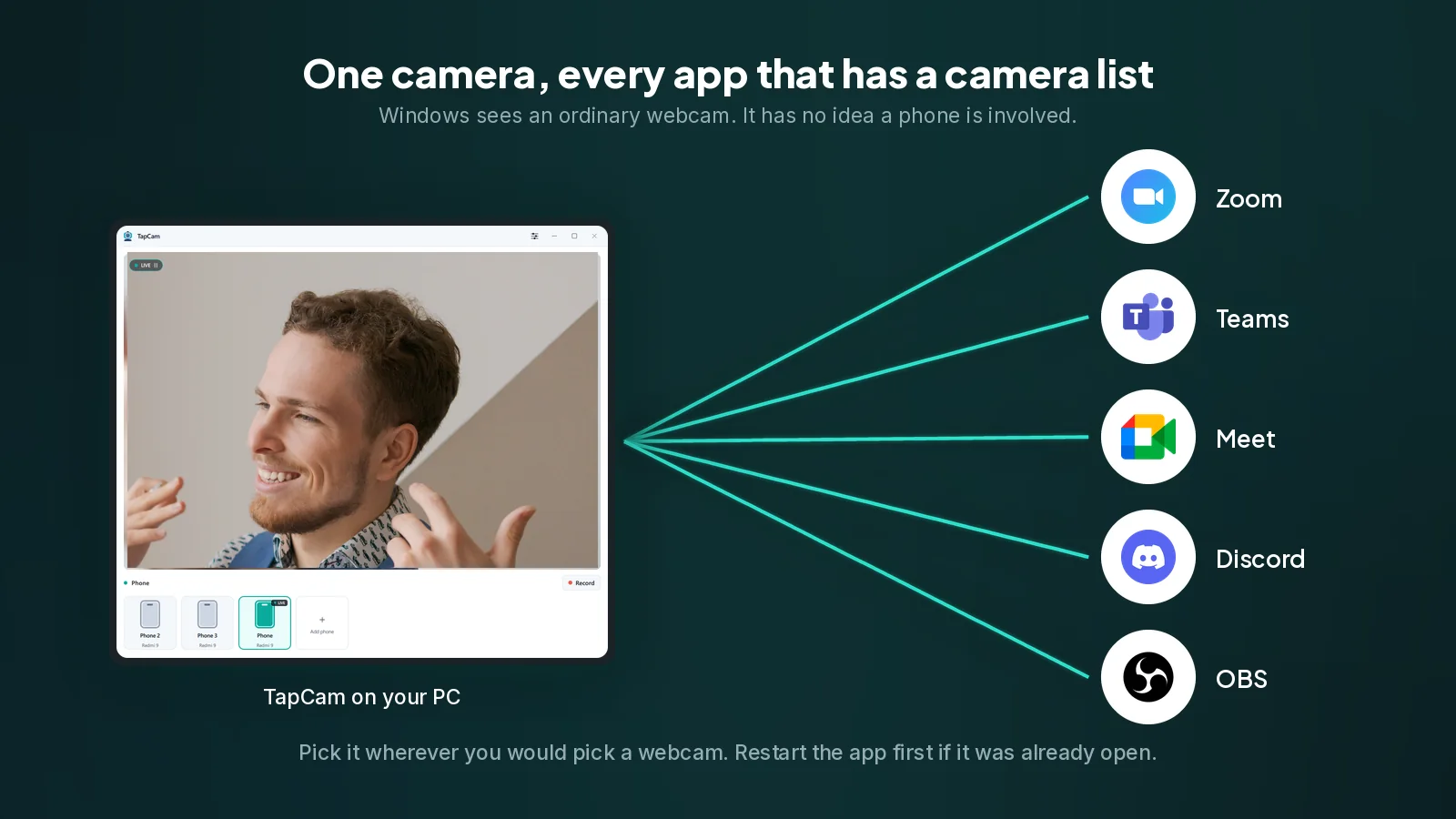
Once your phone is set up as a webcam, the last step is telling your video app to use it. Every app hides that setting somewhere different, which is why this step generates more confusion than the setup itself.
Here is where the camera list lives in each of them, and the three problems that account for almost every case of "my camera is not in the list".
Before anything: restart the app
If the video app was open while you installed the webcam software, it will not see the new camera. Zoom, Teams, Meet, Discord and OBS all build their camera list once, when they start.
Close the app completely and reopen it. In Teams and Discord, closing the window is not enough: they keep running in the system tray, and you have to quit from there. This one step fixes most of what looks like a broken installation.
Zoom
- Click your profile picture, then Settings.
- Choose Video in the left column.
- Open the Camera dropdown at the top and pick your phone.
The preview updates immediately, so you know it worked before you join anything. You can also change it mid-call: click the small arrow next to the Stop Video button and pick the camera from there.
Zoom applies its own touch-up and lighting adjustments on top of whatever it receives. If the picture looks softer than it does in the webcam app itself, look in Video for the appearance settings and turn them off.
Microsoft Teams
- Click the three dots next to your profile picture, then Settings.
- Choose Devices.
- Under Camera, pick your phone.
In a call, click the three dots in the meeting controls, then Settings, then Device settings, and the same list is there.
Teams is the app most likely to need a full restart, because it stays resident in the system tray and its device list is built at launch. Quit it from the tray icon, not from the window.
Google Meet, and other browser apps
Meet runs in the browser, so there are two layers, and people usually only check one.
First, the browser must be allowed to use the camera at all. Click the padlock in the address bar and confirm the camera is allowed for the site. If it was blocked once, Meet will show a camera error and no list of devices worth choosing from.
Then pick the camera inside Meet. Click the three dots in the call, choose Settings, then Video, then pick your phone in the Camera dropdown.
If the phone is missing from the dropdown but present in Windows, the usual cause is that the browser was open before the camera existed. Restart the browser, not just the tab.
Discord
- Open User Settings, the gear next to your name.
- Choose Voice and Video.
- Under Video Settings, pick your phone in the Camera dropdown.
Discord shows a Test Video button right there, which is the fastest confirmation of a working setup in any of these apps.
Discord also lives in the system tray. If the camera is missing, quit it from the tray and start it again.
Skype
Skype was retired on 5 May 2025 and no longer works. Microsoft moved consumer accounts to Teams, where chats and contacts carried over, so the Teams instructions above are the ones you want.
OBS Studio
OBS treats a phone as a source rather than as a camera setting.
- Click + under Sources, choose Video Capture Device.
- Pick your phone in the Device list.
If you then want that to reach Zoom or Meet, start OBS Virtual Camera in the Controls panel and select that as your camera in the meeting app. There are two virtual cameras in that chain and picking the wrong one is the most common mistake.
The three problems behind most failures
The app was already running. Covered above, and it really is the first thing to check.
Another app is holding the camera. Windows gives a camera to one application at a time. If Zoom has it, Teams will get an error or a black frame. Close the other one first. This also catches background apps you forgot about, including the Windows Camera app.
Windows camera privacy is off. Open Settings, then Privacy and security, then Camera, and confirm that camera access is on and that desktop apps are allowed to use it. This setting is off on some managed machines by default.
A note on quality
All of these apps compress hard, and most of them will not send more than 720p in a normal group call regardless of what you feed them. That is not a fault in your setup. A better camera still helps, because the picture that gets compressed is better to begin with, but do not expect the sharpness you see in the webcam app's own preview to survive the call.
Where you do see the full quality is in OBS, in a recording, and in one-to-one calls on some apps. If quality is the point, that is where to look for it.
Frequently asked questions
Why is my camera missing from the list?+
Most often because the app was already running when the camera was installed: Zoom, Teams, Meet and Discord build their camera list at startup. Close the app completely, from the system tray for Teams and Discord, and reopen it.
Can two apps use the camera at the same time?+
No. Windows gives a camera to one application at a time, so if Zoom is holding it, Teams will show an error or a black frame. Close the other app first.
Google Meet does not see my camera. Why?+
Meet runs in the browser, so there are two layers. The browser has to be allowed to use the camera for that site, which you check from the padlock in the address bar, and then the camera has to be picked inside Meet under Settings and Video.
Why does my picture look softer in Zoom than in the app itself?+
Zoom applies its own touch-up and lighting adjustments on top of what it receives. They are in Settings under Video, and you can turn them off.
Will a better camera actually show in a group call?+
Partly. Most apps will not send more than 720p in a normal group call whatever you feed them, so you will not see the sharpness of the app preview. It still helps, because the picture being compressed is better to begin with, and the full quality does show in OBS and in recordings.