Phone webcam quality: what actually gets through

You set the phone to its highest resolution, the preview looks superb, and then the person on the other end of the call says you look the same as before. Nothing is broken. Almost everything that decides how you look on a video call happens after your camera has done its job.
Here is what actually reaches the other side, what is worth changing, and what is a waste of effort. This assumes the setup itself is done.
The number that matters is not the one you set
A frame from your phone passes through three more hands before anyone sees it: your webcam app, your conferencing app, and the network between the participants. Each of them can reduce it. Only the first one obeys you.
Conferencing apps decide their own outgoing resolution, and they decide it dynamically, based on how many people are in the call, how much bandwidth everyone has, and how much CPU is free. In a normal group call, most of them will not send more than 720p regardless of what you feed them, and they will drop lower without telling you when the call gets busy.
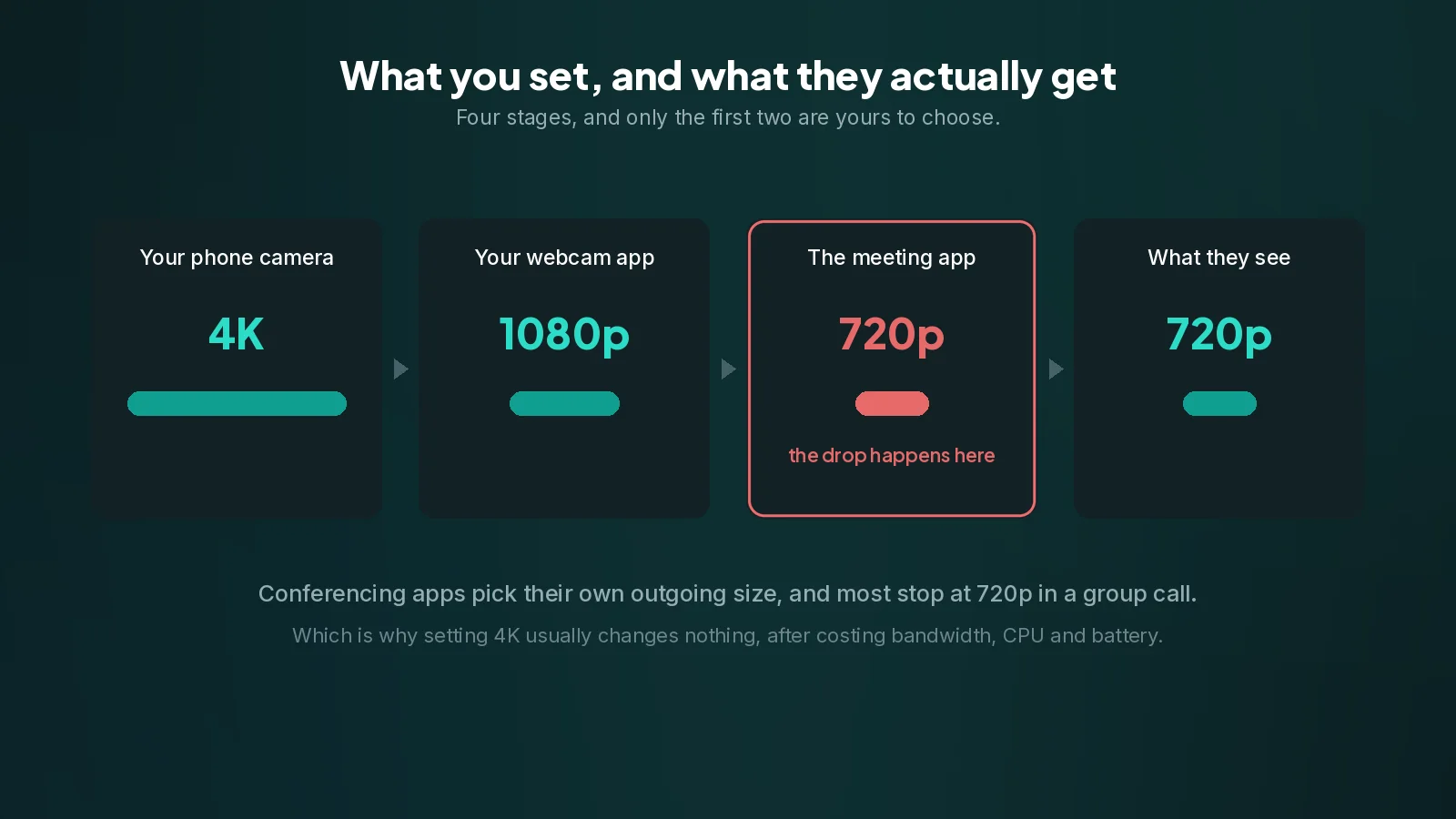
This is why setting 4K usually changes nothing visible. The extra pixels are thrown away a moment later, and you paid for them in bandwidth on the link, in CPU on the PC, and in battery on the phone.
Where the full quality does show up is in OBS, in a local recording, and in some one-to-one calls. If sharpness is the point of what you are doing, that is where to look for it.
What actually makes you look better
In rough order of how much difference they make.
Light on your face. This is not close. A well lit phone camera in a bright room beats an expensive camera in a dim one, every time. Sensors are physical: less light means more noise, and noise is what compression handles worst, so a dim picture also compresses badly and arrives soft and blotchy.
Which camera you use. The rear camera on almost any phone is much better than the front one: a bigger sensor, a faster lens, better processing. If the phone is going to sit on a stand anyway, turn it round.
Where the camera is. Eye level or slightly above, far enough that your head and shoulders fill the frame. This costs nothing and it is the difference between looking like you are in a meeting and looking like you are being interrogated.
A stable frame rate. Smooth motion at a lower resolution reads as better quality than a sharp picture that stutters. If you have to choose, choose smooth.
Resolution. Last, and by a distance, for the reason above.
Resolution and frame rate settings, used deliberately
1080p at 30 frames per second is the sensible default. It is above what most calls will send, so you lose nothing, and it costs far less than 4K in every resource that matters.
Go higher only when the destination can use it. Recording, OBS, or a call you know is one-to-one on an app that sends more.
Go to 60 frames per second only for motion. Hands demonstrating something, an instrument, anything fast. For a talking head it doubles the cost for a difference nobody notices.
If the picture stutters, drop the frame rate before the resolution. Judder is far more visible than a slightly softer image.
Banding, flicker and the light in your room
If your picture has horizontal bands rolling through it, or the brightness pulses, the camera is fighting your lights rather than your network.
Mains electricity alternates, so many lights flicker at 100 or 120 times a second, too fast to see but not too fast for a camera. When the camera's shutter speed does not divide evenly into that rhythm, you get bands. LED lighting is often worse than old fluorescent tubes, because cheap LED drivers pulse more sharply.
Fixes, in order of effort: move to daylight or a different lamp, change the camera's anti-flicker or frequency setting if the app has one, to 50 Hz or 60 Hz depending on your local mains supply, or lower the shutter speed if you have manual control. If you do not know which your area uses, try the other value: the wrong one is what causes the banding in the first place. Nothing on the PC side will fix it, because the banding is already in the frames the phone sent.
Battery and heat, which are real limits
Being a webcam is one of the heaviest sustained jobs you can give a phone. The camera runs continuously, the video encoder runs continuously, and the radio transmits continuously. All three produce heat, and a warm phone will eventually protect itself by reducing performance, which shows up as a dropped frame rate or a softer picture partway through a long call.
What helps:
- Plug it in. Over a USB connection it charges while it works. On Wi-Fi, use a charger.
- Turn the screen off or dim it if the app allows it. The display is a large share of the drain and none of it reaches your picture.
- Lower the resolution for long sessions. This is the one situation where 4K actively hurts you.
- Take the case off if it is thick. Phones shed heat through their body.
- Keep it out of direct sun, which is a surprisingly common cause of a phone overheating mid-call.
What is not worth doing
Buying a 4K-capable setup for meetings. The meeting will not send it.
Chasing bitrate settings before fixing the lighting. Bitrate cannot add detail that the sensor never captured.
Beauty filters and background blur on the phone. Whatever the phone applies is baked into the frames it sends and cannot be undone on the PC. If you want blur, apply it in the conferencing app, which does it after the fact and lets you turn it off.
Comparing previews. The preview in a webcam app is the picture before your conferencing app touches it. It will always look better than what your colleagues see, and that gap is not a bug in either program.
A realistic summary
Fix the light, use the rear camera, put it at eye level, set 1080p at 30 frames per second, and plug the phone in. That is most of the available improvement, and none of it involves a settings page you have to think hard about.
Frequently asked questions
Should I set my phone camera to 4K?+
For meetings, no. Conferencing apps choose their own outgoing resolution and most will not send more than 720p in a group call, so the extra pixels are discarded after costing you bandwidth, CPU and battery. Set 4K only for recording or OBS.
What makes the biggest difference to how I look?+
Light on your face, by a wide margin. A well lit phone camera in a bright room beats an expensive camera in a dim one, because less light means more noise and noise is what compression handles worst.
Why does my picture have rolling bands in it?+
The camera shutter is beating against the flicker of your lights, which pulse at 100 or 120 times a second on mains power. Change the light, or set the camera anti-flicker frequency to 50 Hz or 60 Hz to match your local mains supply, trying the other value if you are not sure. Nothing on the PC can fix it, because the banding is already in the frames the phone sent.
Why does the quality drop partway through a long call?+
The phone is getting warm. The camera, the encoder and the radio all run continuously, and a hot phone protects itself by reducing performance. Plug it in, dim the screen, take a thick case off, and lower the resolution for long sessions.
Why does the preview look better than what people see?+
The preview is the picture before your conferencing app compresses it and decides its own resolution. That gap is normal and it is not a fault in either program.