Phone webcam: USB or Wi-Fi, what really differs
Every guide on this subject says the same thing: USB is faster, Wi-Fi is more convenient. That is true and it is not very useful, because it does not tell you how much faster, why, or when the difference actually matters.
Here is where the delay in a phone-as-webcam setup really comes from, with the parts we have measured in TapCam, and how to decide between the two.
Where the latency actually is
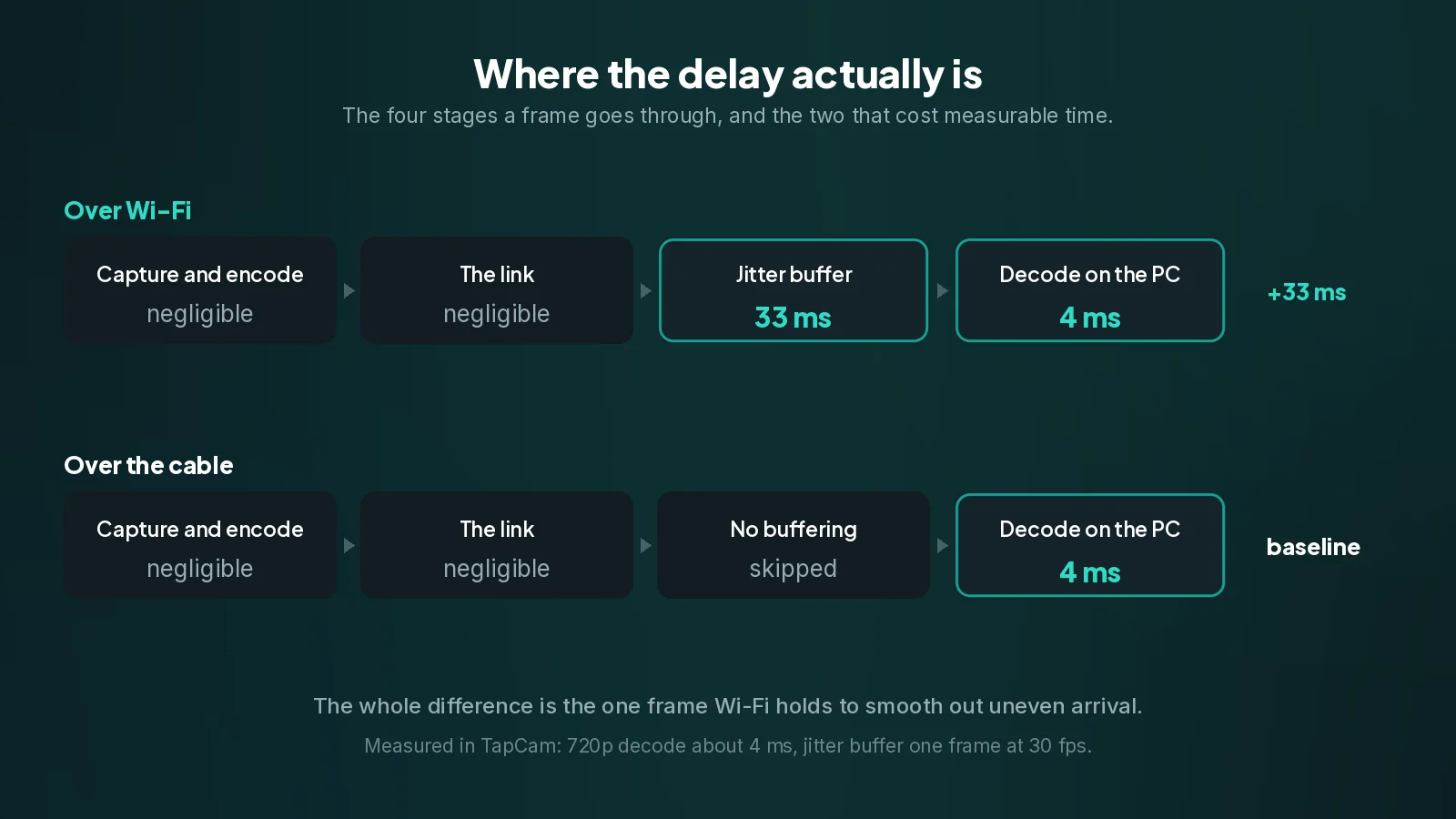
A frame goes through four stages between the phone's sensor and the picture on your PC.
- Capture and encode on the phone. The camera produces a frame and the phone compresses it to H.264. This is hardware work on both platforms and it is fast.
- The link. The compressed frame crosses to the PC, over Wi-Fi or over the cable.
- Buffering. The PC may hold the frame briefly before showing it, to smooth out an uneven arrival rate.
- Decode and display. The PC decompresses the frame and hands it to Windows as a camera frame.
The interesting thing is which of these costs anything. In TapCam, stage four is not the problem: decoding a 720p frame takes about 4 milliseconds on the PC, which is roughly 250 frames per second of headroom against a 30 frames per second stream. Decode is nowhere near the bottleneck, and no amount of a faster PC will make the picture arrive sooner.
Stages two and three are where the difference between a cable and Wi-Fi lives.
Why Wi-Fi needs a buffer, and what it costs
Wi-Fi does not deliver frames at an even pace. It delivers most of them quickly and some of them late, because it shares the air with everything else in range. Video encoders also make this worse on purpose: every so often they send a keyframe, which is several times larger than a normal frame and takes correspondingly longer to arrive.
Play those frames the instant each one lands and the result is not smooth, it is jittery: a run of frames arrives early and bunches up, then one arrives late and the picture freezes for a moment. TapCam had exactly this problem, as a periodic hitch every ten seconds or so, and the cause was the keyframe bursts.
The fix is a jitter buffer: hold each frame briefly, then release frames at a steady rate. TapCam holds one frame, which at 30 frames per second is about 33 milliseconds. That is the price of smooth motion over Wi-Fi, and it is a price worth paying, because a stutter is far more visible than a thirtieth of a second of delay.
Over the cable, TapCam skips that hold entirely. A cable does not have the arrival unevenness that the buffer exists to absorb, so there is nothing to smooth out. That is where the roughly 33 milliseconds of difference between the two comes from: not from the cable being mysteriously faster, but from the buffer that Wi-Fi needs and USB does not.
So does 33 milliseconds matter?
Honestly, for most calls, no. Three hundred milliseconds would be a noticeable delay in a conversation. Thirty three is not, and your video app's own network path will add more than that on its way to the other participants.
It matters in three situations.
- Recording or streaming, where you are matching video to separately recorded audio. Accumulated delay is what makes lip sync drift.
- Anything where you watch yourself on screen while you move, like demonstrating something with your hands. Seeing your own movement late is disorienting in a way that watching someone else late is not.
- When you are already close to the edge, on a busy network where the buffer is doing real work.
If none of those apply, choose on the other criteria below rather than on latency.
The other differences, which often matter more
Charging. This is underrated. Being a webcam is heavy work for a phone: the camera, the video encoder and the radio all run at once, and a phone can lose its battery surprisingly fast. A cable keeps it charged. Over Wi-Fi, a long meeting can end with a phone that needs the charger anyway.
Reliability on a network you do not control. Guest Wi-Fi, hotels, offices and campuses very often isolate their clients from each other, which stops any phone-as-webcam app from working over that network. The cable is not affected by any of it, because there is no network in the path.
Placement. This is Wi-Fi's real advantage, and it is a big one. On a cable, the phone lives within a metre or two of the PC. Over Wi-Fi, it can sit on a tripod across the room, clip to the top of a monitor, look down at a workbench, or point at a whiteboard. If the shot needs the phone somewhere a cable will not reach, that settles it.
Cable clutter. A small thing, but a real one for a desk you look at every day.
What the cable needs on each platform
The cable is not just a wire here. It carries a network connection, so both ends need to be able to speak over it.
On an iPhone, Windows needs Apple Mobile Device Service, the background service that iTunes installs. Install iTunes or the Apple Devices app, open it once, and check in services.msc that the service is set to Automatic. Without it, the cable charges the phone and nothing else happens.
On Android, no extra software is needed on the PC, but the phone may ask you to confirm the connection the first time.
On both, use a data cable. A large share of cables sold for charging carry power only, and this is the single most common reason a USB setup does not work. If the phone charges but the PC never sees it, suspect the cable before anything else.
How to choose
Use the cable when the phone can sit beside the computer, and especially when you are recording, streaming, on a network you do not control, or in a long session where the battery matters.
Use Wi-Fi when the shot needs the phone somewhere else in the room. That is a real creative advantage, not a compromise, and 33 milliseconds is a small price for it.
If you are unsure, start on Wi-Fi. It is quicker to set up, it is good enough for almost every call, and switching to the cable later takes a few seconds.
Frequently asked questions
How much faster is USB really?+
In TapCam, about 33 milliseconds, and the reason is specific: over Wi-Fi one frame is held in a jitter buffer to smooth out uneven arrival, and over the cable that hold is skipped because there is nothing to smooth. It is not the cable being mysteriously faster.
Is the PC fast enough to decode the video?+
Comfortably. Decoding a 720p frame takes about 4 milliseconds, which is around 250 frames per second of headroom against a 30 frames per second stream. Decode is not where the delay is.
Does 33 milliseconds matter?+
For a normal call, no. It matters when you record or stream, when you watch yourself move on screen while demonstrating something, and on a busy network where the buffer is doing real work.
Why does my USB cable not work?+
Most often because it is a charge-only cable rather than a data cable. On an iPhone, Windows also needs Apple Mobile Device Service, which iTunes or the Apple Devices app installs.
When is Wi-Fi the better choice?+
Whenever the shot needs the phone somewhere a cable will not reach: on a tripod across the room, clipped to a monitor, looking down at a workbench. That is a real creative advantage and the small extra delay is a fair price for it.