How to use your phone as a webcam on Windows
Your phone already has a better camera than almost any webcam you could buy for the same money. The sensor is bigger, the lens is faster, and it handles a dim room far better than the module built into a laptop lid. Windows can use that camera, and there is more than one way to do it.
This guide covers every method that works today, what each one costs, and which one to pick. If you only want the short answer: Windows 11 and an Android phone means you can start with nothing to install on the PC, an iPhone always needs an app, and a cable is more stable than Wi-Fi whenever you can use one.
Which method should you use
| Method | Works with | Windows | You need |
|---|---|---|---|
| Phone Link, connected camera | Android | 11 only | Nothing extra, same Wi-Fi |
| USB webcam mode | Recent Android | 10 and 11 | A USB data cable |
| A dedicated app | iPhone and Android | 10 and 11 | An app on both sides |
| Continuity Camera | iPhone | Not Windows | A Mac |
The rest of this guide walks through each one.
Method 1: Phone Link on Windows 11, no extra app
Windows 11 can borrow an Android phone's camera through Phone Link, the feature Microsoft calls a connected camera. Nothing is installed on the PC, and on many Android phones the companion app is already there.
- On the PC, open Settings, then Bluetooth and devices, then Mobile devices.
- Turn on Allow this PC to access your mobile devices, then click Manage devices.
- Pair the phone by scanning the code that appears, signing in with the same Microsoft account on both sides.
- Once the phone is listed, turn on Use as a connected camera.
- Open Teams, Zoom or the Camera app and pick the phone in the camera list.
It is the least effort of any method, and that is the reason to try it first. The trade-offs are real though. It needs Windows 11, a reasonably recent Android phone, and both devices on the same Wi-Fi. It does not work with an iPhone. The picture quality is set by Microsoft rather than by you, and there is no control over which lens is used or how the image is framed.
Method 2: USB webcam mode, no app at all
Recent Android phones can present themselves to a computer as a plain USB camera, with nothing installed anywhere. Windows sees a webcam because the phone claims to be one.
- Connect the phone to the PC with a USB data cable. A charge-only cable will not work, and that is the single most common reason this fails.
- On the phone, pull down the notification shade and tap the USB notification, usually Charging this device via USB or USB preferences.
- Choose Webcam.
- Pick the phone in your video app's camera list.
When your phone supports it, this is the most robust option in the guide: there is no network in the path, so there is nothing to misconfigure. The catch is availability. It arrived with Android 14 and is not on every phone even now, so if you do not see a Webcam entry in that notification, your phone does not have it. It is also cable only, and iPhones do not offer it.
Method 3: A dedicated app, for iPhone and Android
A dedicated app is the method that works everywhere: both phone platforms, Windows 10 as well as 11, over Wi-Fi or over a cable. You install one piece on the phone and one on the PC, and the PC piece registers a camera that every video app can see.
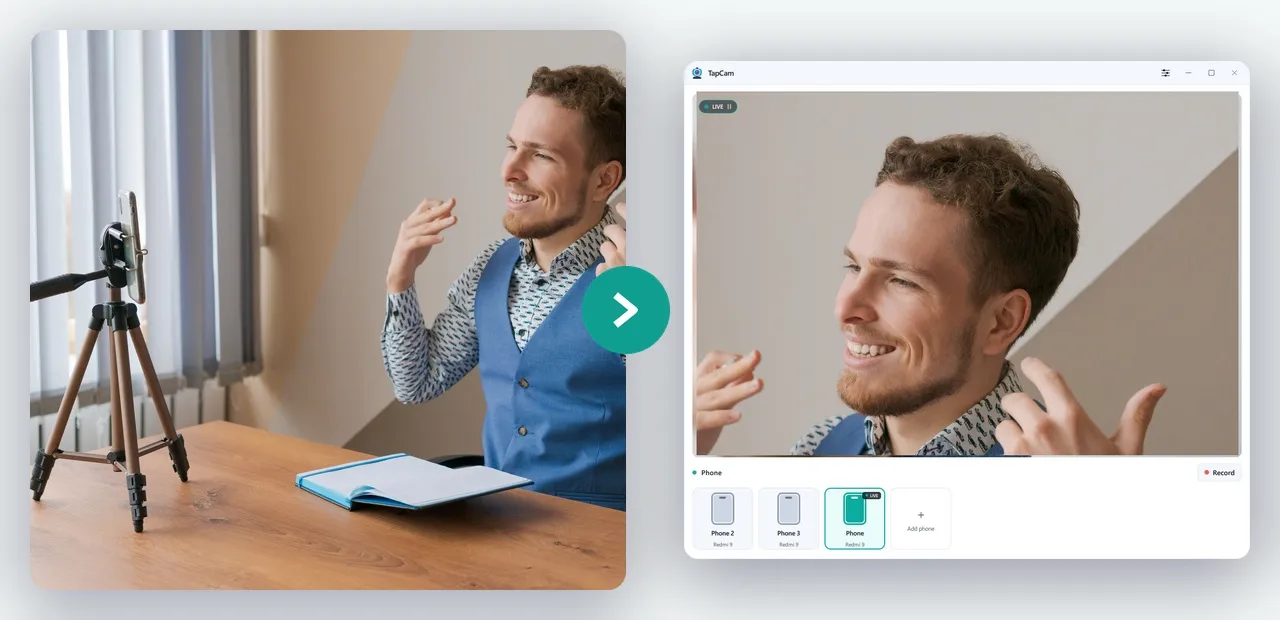
This is what TapCam does. Pairing is a QR code: the Windows app shows one, the phone scans it, and the two connect directly on your network with nothing in between. There is no account to create and no cloud service in the path, because the video never leaves your network.
- Install TapCam on the PC and the companion app on the phone.
- Open TapCam on the PC. It shows a QR code.
- Scan it with the phone app.
- In Zoom, Teams, Meet, Discord or OBS, pick TapCam in the camera list.
TapCam is free to download and use on Windows 10 and 11, and a one-time PRO purchase unlocks the full experience with no subscription.
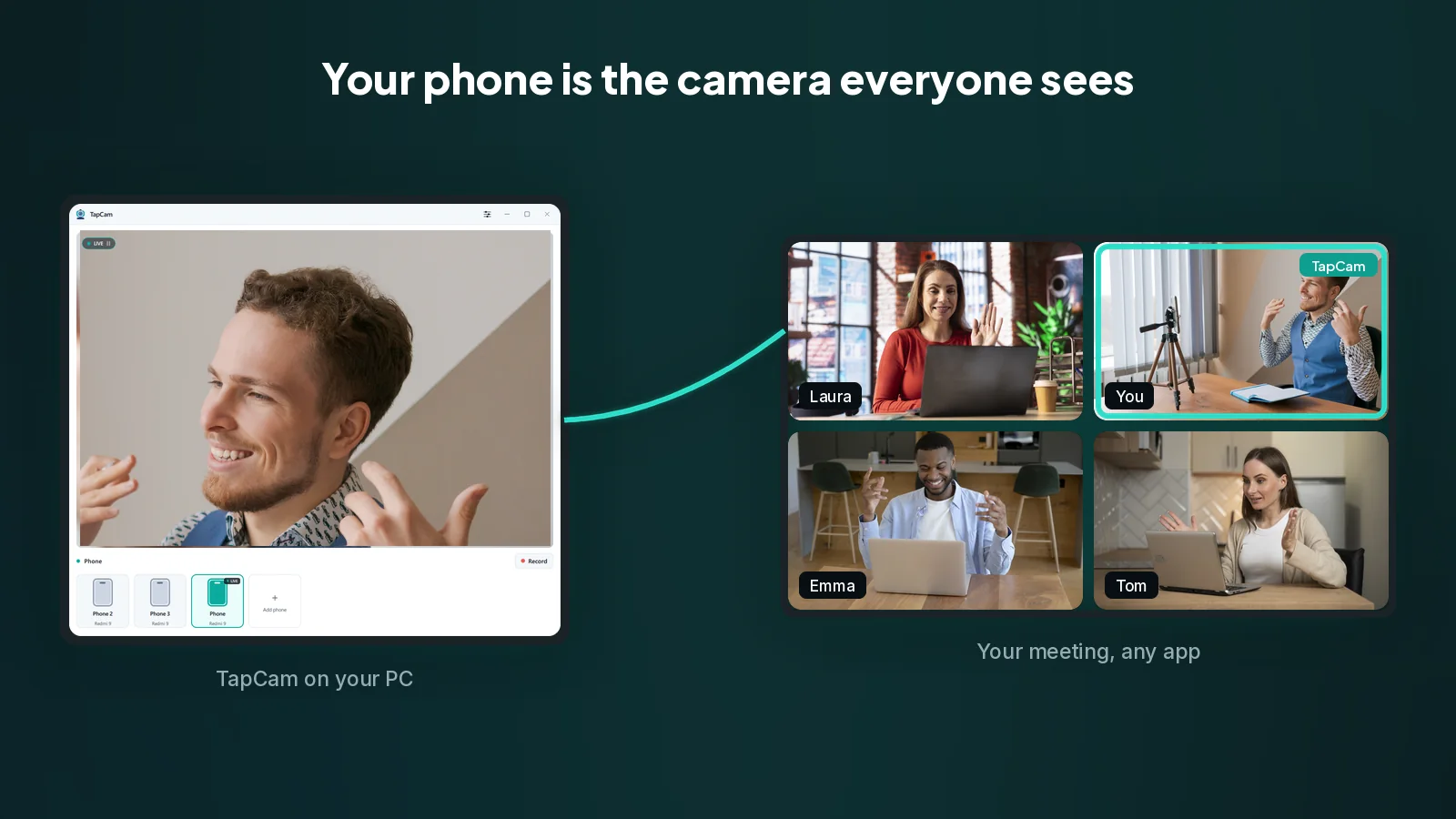
Other apps in this category work on the same principle, and most of them ask the phone to find the PC by itself using network discovery. That works until it does not, which is why so much of their documentation is about firewalls, guest networks and client isolation. Scanning a code sidesteps that question entirely, because the phone is told exactly where to connect.
What about the iPhone and Continuity Camera
Apple's Continuity Camera lets an iPhone act as a webcam with no setup at all, and it is genuinely excellent. It only works with a Mac. There is no Windows version, and Apple has not indicated that there will be one.
So on Windows an iPhone needs an app. That is not a workaround or a lesser path: it is simply how an iPhone connects to a PC, and it works over both Wi-Fi and the Lightning or USB-C cable.
Wi-Fi or USB: which to choose
Use a cable when the phone can stay next to the computer, and Wi-Fi when it cannot. The measured difference between the two is smaller than most guides imply.
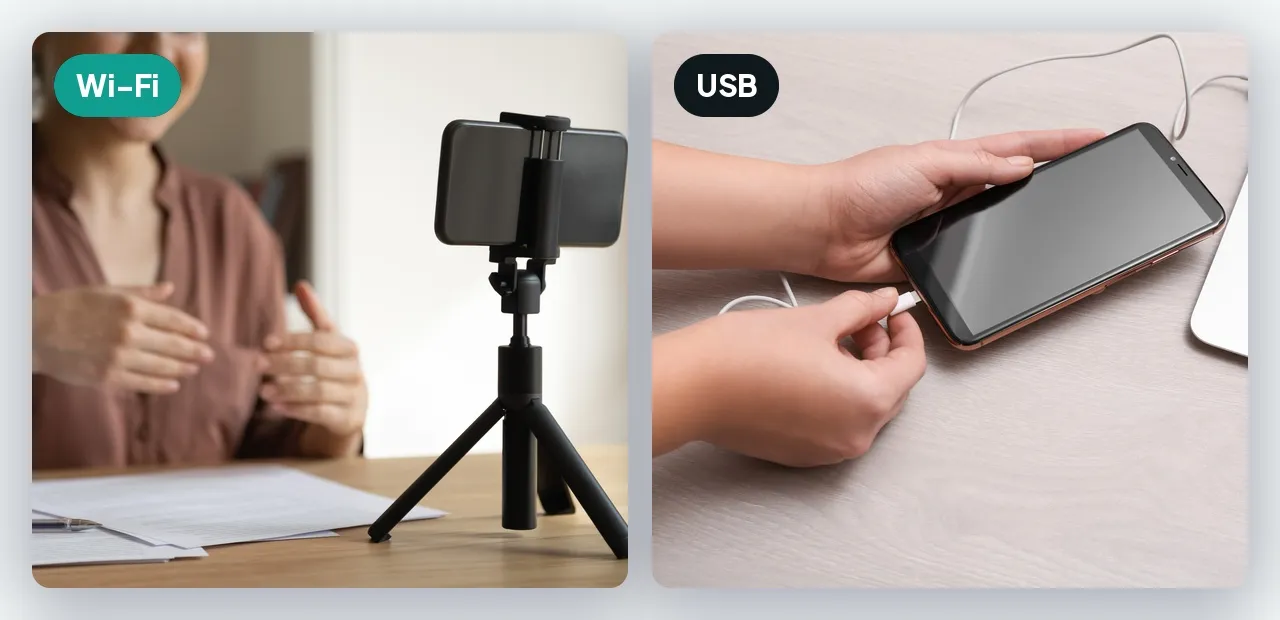
A cable is a dedicated link. Nothing else competes for it, latency is lower and it does not drift when someone else in the house starts a download. It also charges the phone, which matters because being a webcam is demanding work for a phone: the camera, the encoder and the radio all run at once, and the battery drains quickly.
Wi-Fi earns its place when the phone needs to be somewhere the cable will not reach, on a tripod across the room, on a shelf, pointed at a whiteboard. Keep both devices on the same network and on the same band where you can. A phone on the 5 GHz band and a PC on a wired connection to the same router is a good combination.
When it will not connect
Almost every failure in this category is a network problem, and they fall into a short list.
- The two devices are not on the same network. The most common version is a phone that stayed on mobile data, or a PC on a wired network that is separate from the Wi-Fi.
- A guest network. Guest Wi-Fi usually blocks devices from talking to each other by design. Move the phone to the main network.
- Client isolation on the router. Same effect as a guest network, sometimes switched on by default. It is often called AP isolation in the router settings.
- The Windows firewall. The first time the PC app runs, Windows asks whether to allow it. If that prompt was dismissed, the app is blocked and the phone will never find it.
- A VPN on either device. A VPN puts the phone on a different network than the one it is physically connected to.
If you have worked through that list and it still will not connect, the full checklist is here, and a cable is the shortcut. It removes the entire category of problem at once.
Do you still need a real webcam
Sometimes, yes. A phone is not the right tool when the camera has to stay in place permanently and be ready without a thought, when you need to charge the phone and use it as a camera for hours at a time, or when you simply want to keep your phone in your hand during a call.
For everything else, the camera you already own is better than the one you would buy.
Frequently asked questions
Can I use my iPhone as a webcam on Windows?+
Yes, with an app on both the iPhone and the PC. Apple's Continuity Camera does the same thing with no setup, but it only works with a Mac, so on Windows an app is the way an iPhone connects.
Do I need Windows 11?+
Only for Microsoft's built-in connected camera, which is a Windows 11 feature and Android only. USB webcam mode and dedicated apps work on Windows 10 as well.
Is a cable better than Wi-Fi?+
Usually yes. A cable is a dedicated link, so latency is lower and nothing else on the network competes with it, and it charges the phone while it works. Wi-Fi is the better choice when the phone has to sit somewhere a cable will not reach.
Why can my phone not find my PC?+
Almost always a network problem: the two devices are on different networks, the phone is on guest Wi-Fi, the router isolates clients from each other, a VPN is running, or the Windows firewall prompt was dismissed the first time the app ran. A USB cable removes the whole category of problem.
Does the video go through the internet?+
With TapCam, no. The phone connects straight to the PC on your own network, so the video never leaves it. Other apps differ, so it is worth checking before you use one for anything private.