Use an Android phone as a USB webcam, no app
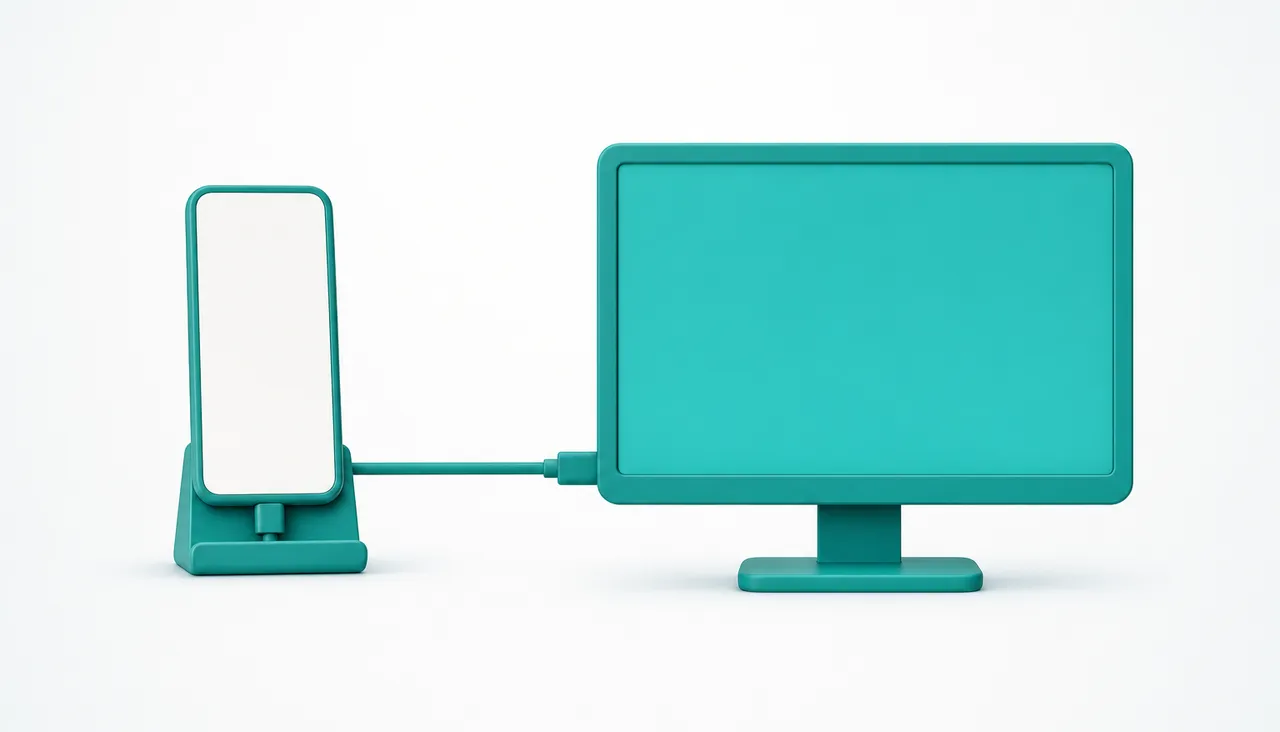
Since Android 14, a phone can tell a computer that it is a webcam, and the computer believes it. No app on the phone, no app on the PC, no network. Plug in a cable, tap one notification, and the phone appears in your camera list.
When your phone supports it, this is the most robust way to do this that exists, and it is worth trying before anything else. The catch is in that "when".
How to do it
- Connect the phone to the PC with a USB data cable.
- On the phone, swipe down to open the notification shade. There will be a notification about the USB connection, usually reading Charging this device via USB or USB preferences.
- Tap it. A list of USB modes appears: file transfer, PTP, tethering, and so on.
- Choose Webcam.
- On the PC, open Zoom, Teams, the Camera app or anything else with a camera list, and pick the phone.
That is the whole procedure. On some phones the screen then shows a small preview with a button to switch between the front and rear lenses.
Why this way is so reliable
Every other method in this category has something that can go wrong in the middle. Network discovery can fail, a firewall can block a port, a router can isolate its clients, a driver can be missing.
This one has none of that. The phone presents itself as a standard USB video device, the same class of thing as any plug-in webcam, and Windows already knows how to talk to those. Nothing is installed, so nothing can be misconfigured. If the Webcam option is there and the cable carries data, it works.
Why your phone may not have it
The feature arrived in Android 14, but Android 14 does not guarantee it. The phone manufacturer has to include the webcam mode in their build, and not all of them do, or they add it in a later update than the one you have.
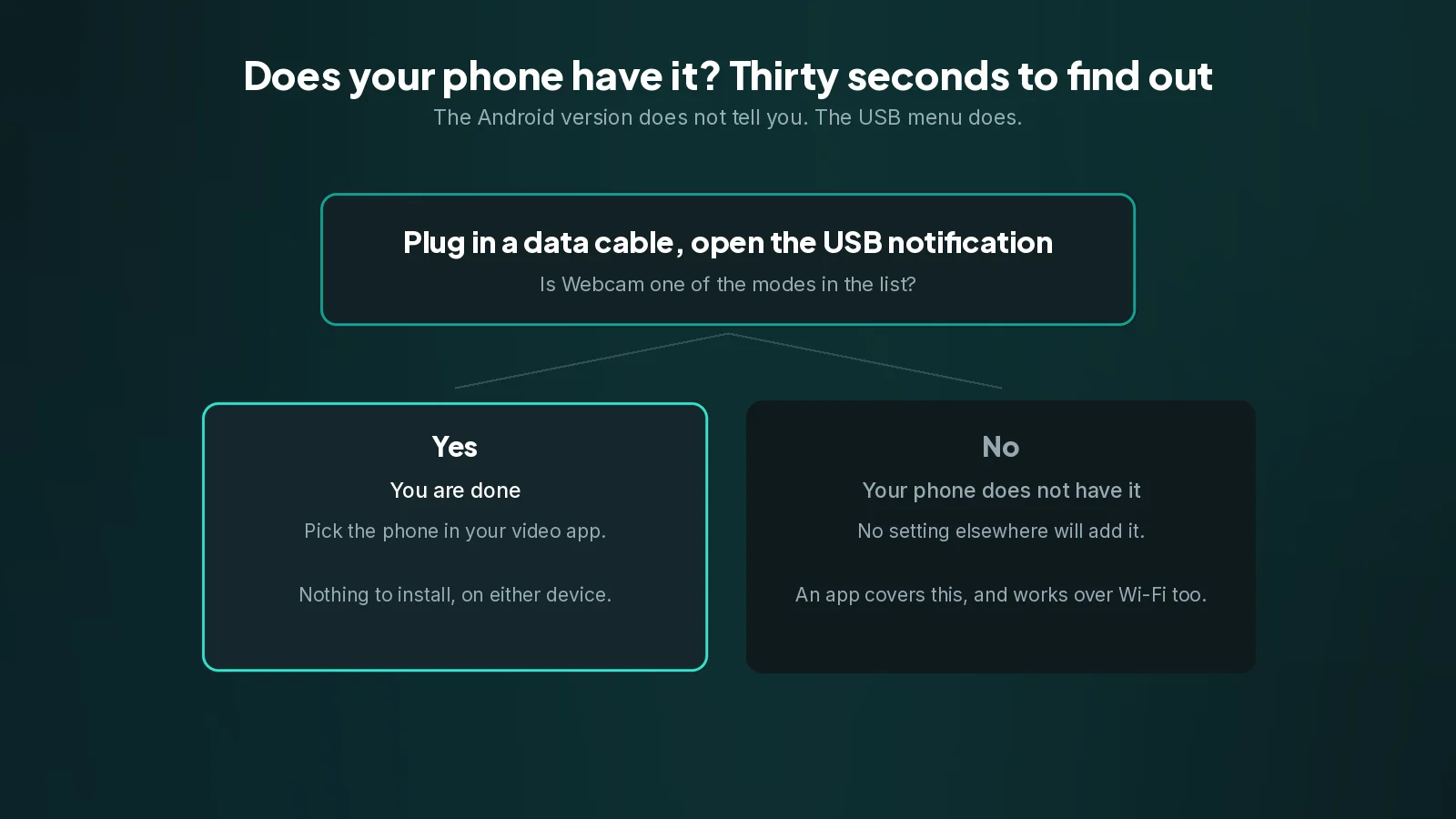
So the check is not the Android version, it is the notification. Plug the phone in, open the USB options, and look for Webcam in the list. If it is not there, your phone does not have it, and no setting elsewhere will add it.
Two other things that look like the feature being missing but are not:
- A charge-only cable. A large share of cables sold for charging carry power and nothing else. If the phone charges but the PC never reacts at all, and no USB notification appears, suspect the cable first.
- The notification already dismissed. If you swiped it away, unplug and replug, or find the USB setting under the phone's connected devices settings.
What you give up
It is worth being clear about the trade, because the simplicity is not free.
Cable only. There is no wireless version of this. The phone lives within a cable's length of the computer, so the shot options are limited to the desk.
No control over the picture. There is no resolution setting, no frame rate choice, no bitrate, and no way to change how the image is processed. You get what the phone decides to send.
One phone, one cable. Nothing to switch between, nothing to manage. That is a feature until you have two phones or want to leave the setup ready without a cable trailing across the desk.
No iPhone. This is an Android feature. An iPhone on Windows needs an app.
When to use an app instead
Use the built-in mode when it is there, the cable is convenient, and you just want a better picture. It costs nothing and it will not let you down.
Use an app when you need any of the following.
- The phone somewhere a cable will not reach, on a tripod across the room or pointed at a workbench. Wi-Fi costs about 33 milliseconds for that freedom.
- An iPhone, or one setup that covers both phones you own.
- Control over resolution and frame rate, especially for recording or for OBS.
- More than one phone, switched without replugging.
- A phone that simply does not have the Webcam option, which is a large number of perfectly good phones.
TapCam covers all five. It pairs by QR code, runs over Wi-Fi or over the same USB cable, takes iPhone and Android, works on Windows 10 as well as 11, and lists your linked phones so you pick which one feeds the camera. It is free to download and use, and a one-time PRO purchase unlocks the full experience, with no subscription.
None of that is an argument against the built-in mode. If your phone has it and a cable suits you, use it. This guide exists mostly so you can find out in thirty seconds whether it is an option, instead of reading a comparison of apps you may not need.
If the PC does not see the phone
- Check the cable carries data. This is the first suspect every time.
- Try another USB port, preferably one directly on the machine rather than on a hub or a monitor.
- Unlock the phone. Some phones will not switch USB modes while locked.
- Restart the video app. Conferencing apps build their camera list at startup and will not notice a camera that appeared afterwards. Close it fully, from the system tray if it lives there, and reopen it.
- Check no other app is holding the camera. Windows gives a camera to one application at a time.
Frequently asked questions
How do I know if my phone supports it?+
Plug it in with a data cable and open the USB notification. If Webcam is in the list of USB modes, you have it. The Android version is not a reliable guide, because the manufacturer has to include the feature in their build.
Do I need to install anything on the PC?+
No. The phone presents itself as a standard USB video device, the same class of thing as a plug-in webcam, and Windows already knows how to talk to those.
Can I use it over Wi-Fi?+
No, the built-in mode is cable only. If the phone needs to sit somewhere a cable will not reach, you need an app.
Can I change the resolution?+
No. There is no resolution, frame rate or bitrate setting: the phone sends what it decides to send. Control over the picture is one of the reasons to use an app instead.
Nothing happens when I plug the phone in. Why?+
Most often the cable carries power but not data, which is true of a large share of charging cables. Otherwise try a port directly on the machine rather than a hub, and unlock the phone, because some phones will not switch USB modes while locked.