Android phone as a webcam on Windows 11, no app
Windows 11 can use an Android phone's camera with nothing to install on the PC. The feature is part of Phone Link, Microsoft calls it a connected camera, and if your setup qualifies it is the fastest way to get a phone into Teams or Zoom.
The catch is the qualifying. This guide covers the setup, the requirements that are easy to miss, and where the feature stops being enough.
What you need before you start
All of these, not most of them.
- Windows 11. The feature does not exist on Windows 10, and the menus below will not be there.
- A reasonably recent Android phone. There is no iPhone version and there will not be one, because the feature is built on Microsoft's own Android link.
- The Link to Windows app on the phone, up to date. It is preinstalled on many Samsung, Honor and Surface Duo devices, and on the Play Store otherwise. Microsoft has revised the exact minimum Android and app versions more than once, so its own requirements page is the authority if the option does not appear.
- Both devices on the same Wi-Fi network. That is how the video travels.
Setting it up
- On the PC, open Settings, then Bluetooth and devices, then Mobile devices.
- Turn on Allow this PC to access your mobile devices.
- Click Manage devices. A code appears.
- On the phone, open Link to Windows, scan the code, sign in when prompted, and approve the permissions it asks for.
- Back on the PC, the phone is now listed. Turn on Use as a connected camera.
- Open Teams, Zoom, the Camera app or anything else with a camera list, and pick the phone.
The phone shows a small overlay while it is being used as a camera, with controls to pause the stream or switch between the front and rear lenses.
If the phone does not appear in your video app's camera list, close that app completely and reopen it. Conferencing apps build their camera list at startup and will not notice a camera that appeared afterwards.
What it is good at
It is genuinely convenient. Nothing to install on the PC, nothing to pay for, and the connection re-establishes itself when you come back to the desk. For a Samsung phone next to a recent Windows 11 laptop, it is hard to beat as a way to get a better picture into a Teams call.
It also does the thing that matters most: Windows presents the phone as an ordinary camera, so every app that can use a webcam can use it.
Where it stops being enough
Being honest about the limits is more useful than a feature list.
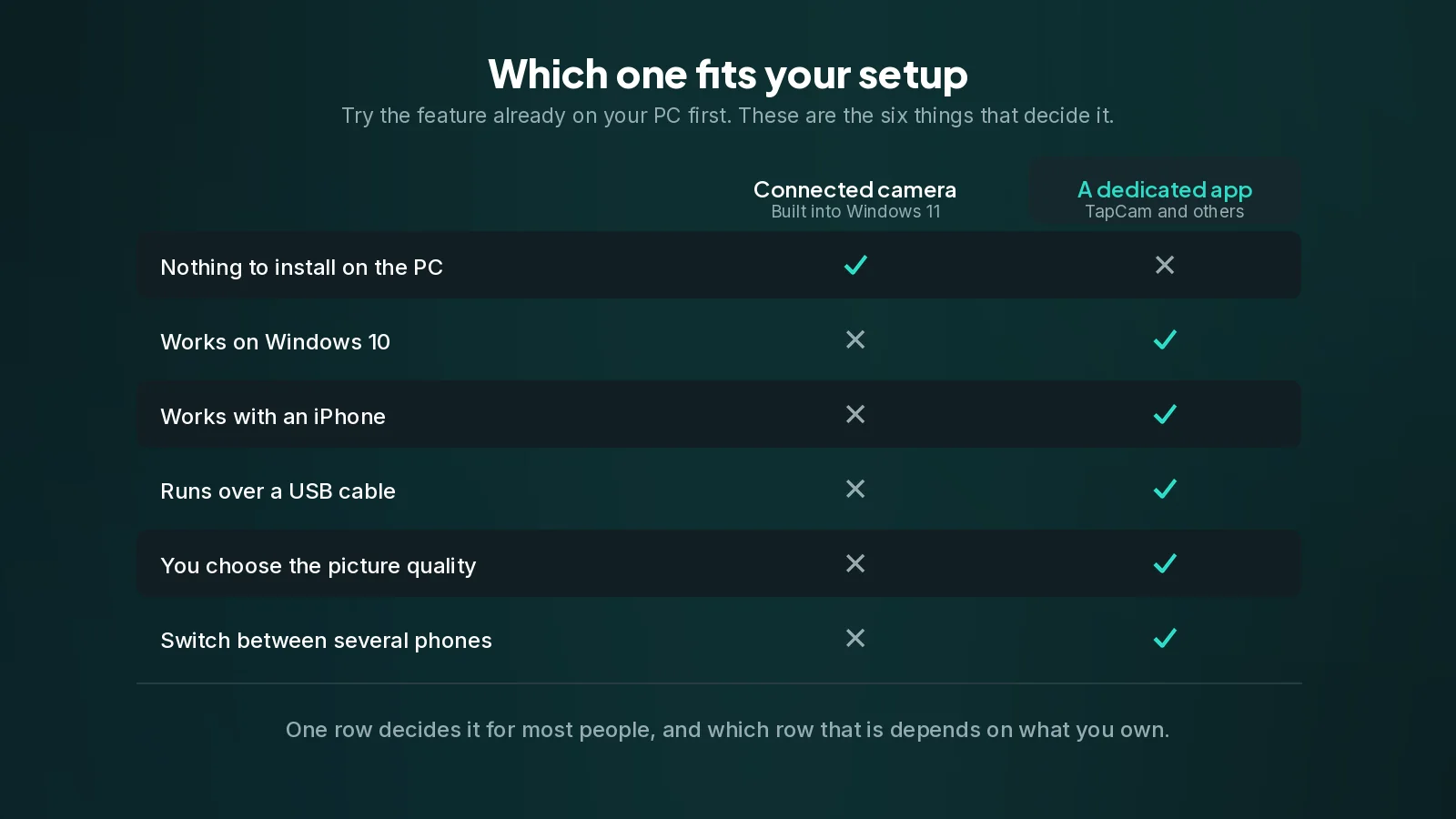
No iPhone. This is the big one. If the phone in your pocket is an iPhone, none of this applies and you need an app.
No Windows 10. A large number of working PCs are still on Windows 10 and will stay there.
Little control over the picture. Microsoft chooses the resolution and the processing. The stream is 720p, which is what Microsoft's feature chooses to send rather than any limit of Windows itself, and there is no setting to raise it, no frame rate choice, and no manual control over which lens or how the image is framed beyond the small on-phone overlay.
One phone. It is bound to the phone you paired with your account. Switching between two phones means going back through the pairing.
Wi-Fi only. There is no cable mode, so on a network that isolates its clients, or in a place with poor Wi-Fi, you are stuck.
A linked phone and an account. Setting it up means linking the phone to the PC through Phone Link, which a managed work machine may not allow.
When to use an app instead
Use the built-in feature when it qualifies and you just want a better picture in a meeting. Reach for an app when any of the following is true.
- You have an iPhone, or you want the same setup to work with either phone.
- Your PC runs Windows 10.
- You want to choose the resolution and frame rate, or you want the same picture in OBS at a quality you control.
- You want to run over a cable, because the network is unreliable or blocks device-to-device traffic, or because you want the phone charging while it works.
- You want to switch between several phones without repairing.
TapCam covers all five. It pairs by QR code rather than by account, works on Windows 10 and 11, takes iPhone and Android, runs over Wi-Fi or the USB cable, and lists the phones you have linked so you can pick which one feeds the camera. It is free to download and use, and a one-time PRO purchase unlocks the full experience, with no subscription.
That is not an argument against Microsoft's feature. If it fits your hardware and you are happy with the picture, use it: it is free and it is already there. This guide exists because for a lot of people it does not fit, and the reason is usually one line in the requirements list rather than anything they did wrong.
If the connected camera stops working
- Check both devices are on the same Wi-Fi. The video does not travel over Bluetooth.
- Check the phone is not on battery saver, which suspends the link.
- Re-open Link to Windows on the phone and confirm it is still linked and up to date.
- Toggle the connected camera setting off and on in Mobile devices on the PC.
- Restart the video app, for the camera-list reason above.
If it keeps dropping, the general troubleshooting for any phone-as-webcam setup applies, and most of it is about the network rather than the app.
Frequently asked questions
Does the connected camera work on Windows 10?+
No. It is a Windows 11 feature only. On Windows 10 you need an app on both the PC and the phone.
Can I use an iPhone with Phone Link as a camera?+
No. The connected camera is built on Microsoft's Android link and there is no iPhone version. On Windows an iPhone needs a dedicated app.
Why is my phone not listed in Mobile devices?+
Usually one requirement is missing: a Windows 11 PC, a reasonably recent Android phone, an up-to-date Link to Windows app, and both devices on the same Wi-Fi network. Microsoft has revised the exact minimum versions more than once, so its own requirements page is the authority.
Can I change the resolution?+
No. The stream is 720p, which is what Microsoft's feature chooses to send rather than any limit of Windows itself, and there is no setting to raise it or to pick a frame rate. If you want control over the picture, that is one of the reasons to use an app instead.
Can I use it over a USB cable?+
No, the connected camera is Wi-Fi only. On a network that isolates its clients, such as most guest and office networks, it cannot work at all.