How to use your iPhone as a webcam on Windows
If you have looked for this before, you have probably run into the same wall: every article about using an iPhone as a webcam is really about using it with a Mac. Apple's Continuity Camera is genuinely excellent, and it does not exist on Windows.
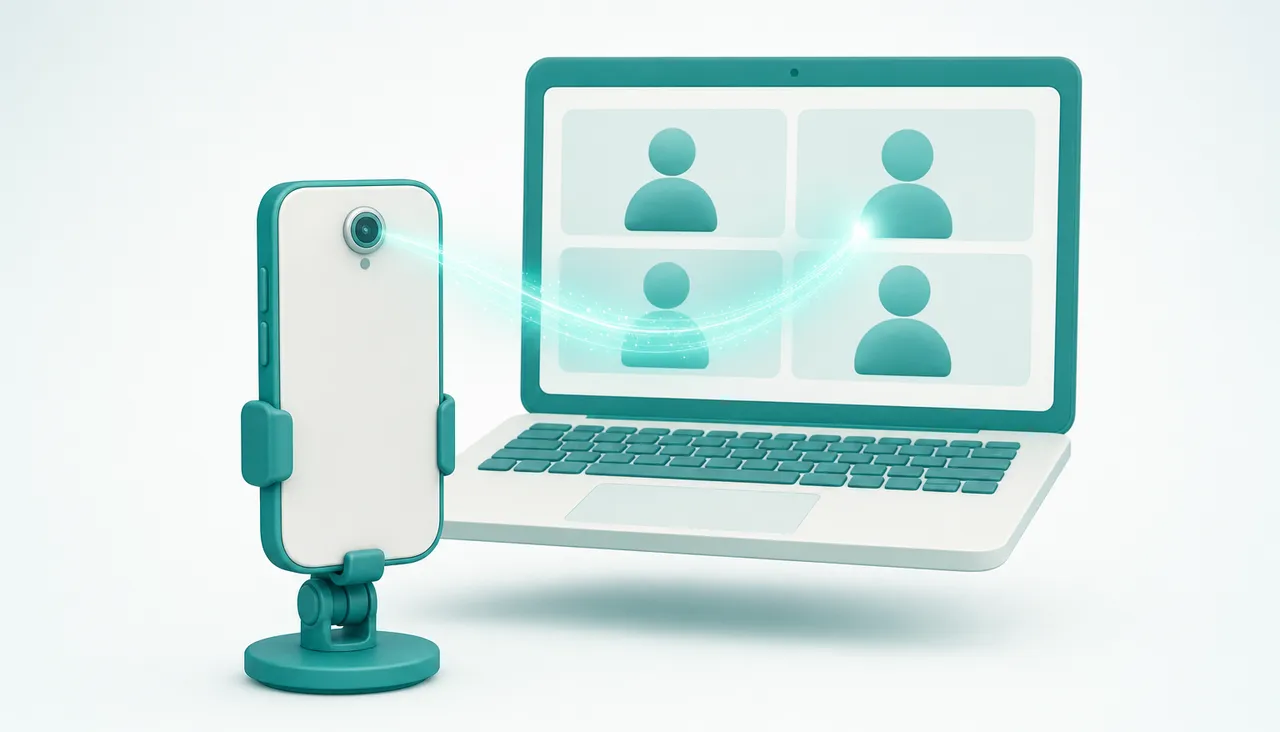
So on a PC, an iPhone needs an app. That is not a workaround or a second-class path. It is simply how an iPhone talks to a Windows machine, it works over Wi-Fi and over the cable, and the picture you get is the one from the iPhone camera, which is better than almost any webcam sold at the same price.
Why Continuity Camera does not help here
Continuity Camera pairs an iPhone with a Mac over Apple's own device link. Both ends are Apple software talking to each other, and none of it is available to Windows. There is no driver to install, no compatibility mode, no setting to turn on. Apple has never shipped a Windows version and has given no sign of doing so.
What this means in practice: any guide that tells you to "just enable Continuity Camera" on a PC is describing something that does not exist. Skip it.
What you need
Two pieces, one on each device.
- An app on the iPhone, from the App Store.
- A companion on the PC, which is the part that matters most. It registers a camera with Windows, so that Zoom, Teams, Meet, Discord, OBS and anything else with a camera list can see the iPhone as an ordinary webcam.
That second half is the whole trick. Windows has no idea a phone is involved. It sees a camera, exactly like a USB webcam, and every app that can use a webcam can use it.
Setting it up with TapCam
TapCam pairs by QR code, which removes the step that goes wrong most often in this category. There is no IP address to type, no account to create, and no cloud service in the middle: the iPhone connects straight to the PC on your own network, and the video never leaves it.
- Install TapCam on the PC, and TapCam on the iPhone from the App Store.
- Open TapCam on the PC. It shows a QR code.
- Open the app on the iPhone and scan it.
- The phone appears in TapCam and the picture starts.
- In Zoom, Teams, Meet, Discord or OBS, pick TapCam where you would pick a webcam.
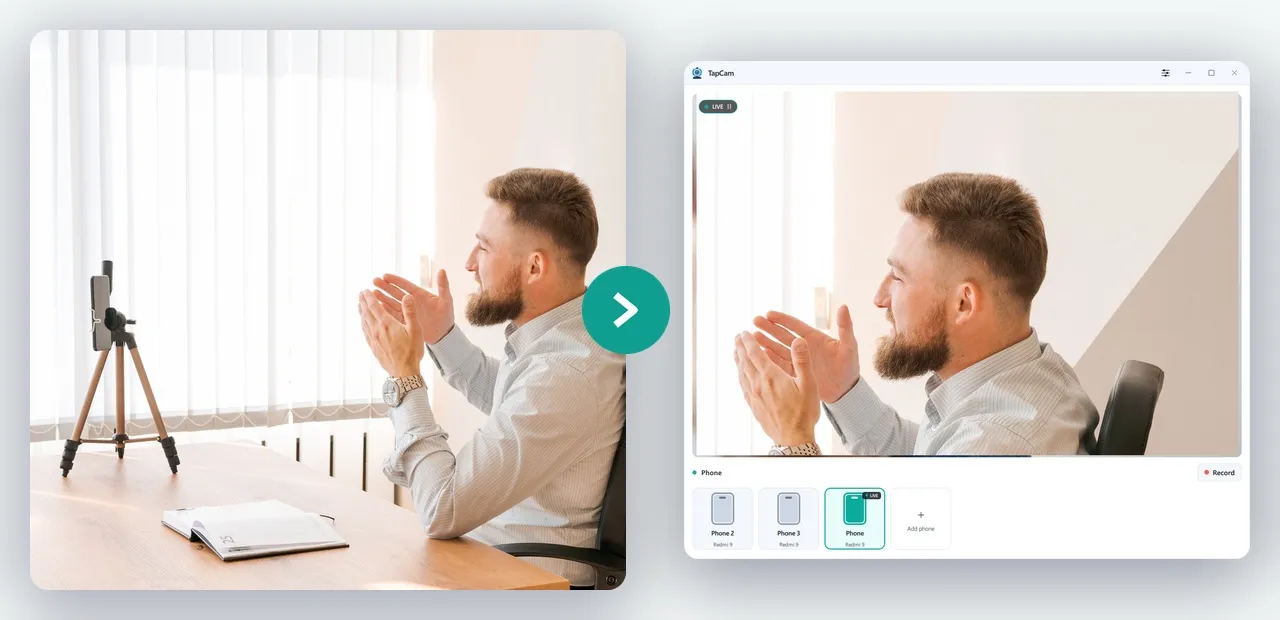
If the video app was already open when you installed, close it and reopen it. Most conferencing apps build their camera list once at startup and will not notice a new camera until they restart. This is the single most common reason people think a setup has failed when it has not.
TapCam is free to download and use on Windows 10 and 11, and a one-time PRO purchase unlocks the full experience, with no subscription.
Over Wi-Fi, or over the cable
Both work with an iPhone, and they suit different situations.
Wi-Fi frees the phone from the desk. Put it on a small tripod across the room, clip it to the top of the monitor, aim it at a whiteboard or a workbench. Keep the phone and the PC on the same network, and prefer the 5 GHz band when your router offers both.
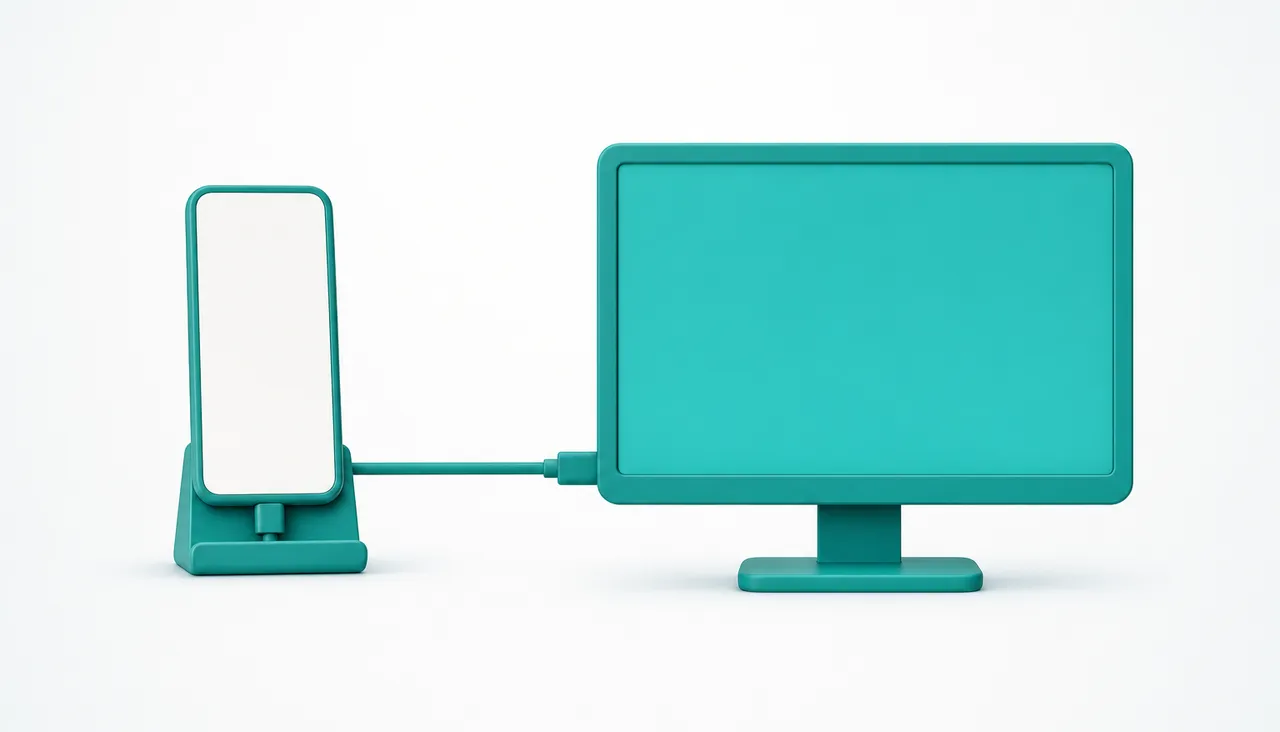
The cable is steadier. Nothing else on the network competes with it, latency is a little lower, and the phone charges while it works. That last point matters more than it sounds: being a webcam is demanding for a phone, because the camera, the video encoder and the radio all run at once, and the battery goes down quickly.
There is one Windows-specific requirement for the cable, and it catches almost everyone.
The cable needs Apple's device service running
Windows cannot talk to an iPhone over USB on its own. It needs Apple Mobile Device Service, which is the background service that iTunes installs. Without it, the cable charges the phone and nothing else happens.
- Install iTunes, or the Apple Devices app, from Microsoft's store or from Apple's site, and open it once.
- Make sure the service is actually running. Press Windows and R, type
services.msc, find Apple Mobile Device Service, and set its startup type to Automatic if it is not already. - Use a data cable. Many cables sold for charging carry power only. If the phone charges but no computer ever sees it, that is usually the cable.
If you installed iTunes from the Microsoft Store, the service is tied to that app, so opening iTunes once after installation is what gets it started the first time.
Which camera the iPhone uses
Most apps in this category start on the rear camera, because that is the good one. The front camera is convenient when you want to see yourself while you talk, but it is a smaller sensor with a slower lens, and the difference shows in a room that is not brightly lit.
If you are going to leave the phone on a stand anyway, use the rear camera and turn the phone around. You will get a visibly better picture for no extra effort.
Mounting it so it does not look like a phone on a desk
The camera position is what separates a good call from a strange one, and it costs nothing to fix. There is more on mounting and lighting in its own guide.
- Height. The lens should be at eye level or a little above. A phone lying on a desk pointing up is the least flattering angle there is.
- Distance. Far enough that your head and shoulders fill the frame, not just your face.
- Light. Face a window or a lamp. A bright window behind you turns you into a silhouette, and no camera fixes that.
- Stability. A cheap phone tripod or a monitor clip is enough. A stack of books works and looks it.
When it does not connect
Almost every failure here is a network problem rather than an app problem, and they fall into a short list.
- The two devices are on different networks. The usual version is an iPhone that stayed on mobile data, or a PC connected by Ethernet to a network separate from the Wi-Fi.
- Guest Wi-Fi. Guest networks usually stop devices from talking to each other by design.
- Client isolation on the router, sometimes called AP isolation, which has the same effect on the main network.
- The Windows firewall. The first time the PC app runs, Windows asks whether to allow it. If that prompt was dismissed, the app is blocked.
- A VPN on either device, which puts the phone on a different network than the one it is physically joined to.
- The local network permission on iOS. iOS asks each app for permission to find devices on the local network. If it was refused, the app cannot reach the PC. It is in Settings, under the app's own entry.
If you have been through that list and it still will not connect, work through the full connection checklist, or plug in the cable. It removes the whole category of problem at once.
Is the picture actually better than a webcam
Usually, yes, and the gap is widest where it matters. An iPhone sensor is bigger than the one in a laptop lid, the lens gathers more light, and the image processing is years ahead. In a well lit room a decent USB webcam is competitive. In an ordinary room in the evening, the iPhone is not close to competitive, it is simply better.
What a phone does not give you is permanence. A dedicated webcam sits on the monitor, always aimed, always ready, and it does not ring. If you take a lot of unplanned calls, that convenience is worth something. If your calls are planned, the camera you already own wins.
Frequently asked questions
Can I use Continuity Camera with Windows?+
No. Continuity Camera pairs an iPhone with a Mac using Apple software on both ends, and Apple has never shipped a Windows version. On a PC an iPhone needs an app on the phone and a companion on the PC.
Why does my iPhone not connect over USB?+
Windows cannot talk to an iPhone on its own. It needs Apple Mobile Device Service, which iTunes or the Apple Devices app installs. Install one, open it once, and check the service is set to Automatic in services.msc. Also make sure the cable carries data: many charging cables do not.
Should I use the front or the rear camera?+
The rear one, whenever the phone is on a stand. It has a bigger sensor and a faster lens, and the difference is clear in a room that is not brightly lit. The front camera is only more convenient when you want to watch yourself while you talk.
Does my iPhone video go through the internet?+
With TapCam, no. The iPhone connects straight to the PC on your own network, so the video never leaves it. Other apps differ, so it is worth checking before using one for anything private.
Is an iPhone really better than a webcam?+
In a well lit room a good USB webcam is competitive. In an ordinary room in the evening the iPhone is simply better, because the sensor is bigger and the lens gathers more light. What a webcam gives you instead is permanence: it is always aimed, always ready, and it does not ring.