Phone webcam not connecting: the fixes, in order

Your phone says it cannot find the PC, or it connects and then drops, or the camera never shows up in Zoom. This is the most common problem with every phone-as-webcam setup, and the reason is almost always the same: it is a network problem, not a camera problem.
The good news is that the causes are a short, finite list. Work down it in order. Each check takes under a minute, and the ones at the top are the ones that are actually wrong most of the time.
If you want to stop reading and just fix it: plug the phone into the PC with a USB data cable. A cable removes this entire category of problem at once, because there is no network in the path to misconfigure.
Before anything else: is the PC half installed and open?
Every phone-as-webcam app has two halves: an app on the phone, and a program on the PC that receives the video and presents it to Windows as a camera. The phone app on its own cannot show anything on the computer, and the computer cannot find it either.
So if you are looking at the PC and see no pairing code, no QR, nothing waiting for the phone, the PC half is not installed, or it is not running. Install it from the app's website, open it, and only then go back to the phone. The code appears in the program's own window, not in a browser and not on the phone.
This sounds too obvious to list, and it is the single most common reason behind a support message that says "the code is not showing". The phone app walks you through its own steps one by one, and the PC side is easy to forget.
First, the two questions that solve most cases
Are both devices really on the same network? Not "both at home". The same network.
The usual traps are a phone that quietly stayed on mobile data because the Wi-Fi was weak, and a desktop PC wired by Ethernet into a network that is separate from the Wi-Fi the phone joined. Households with a mesh system or a second router often have two networks that look like one.
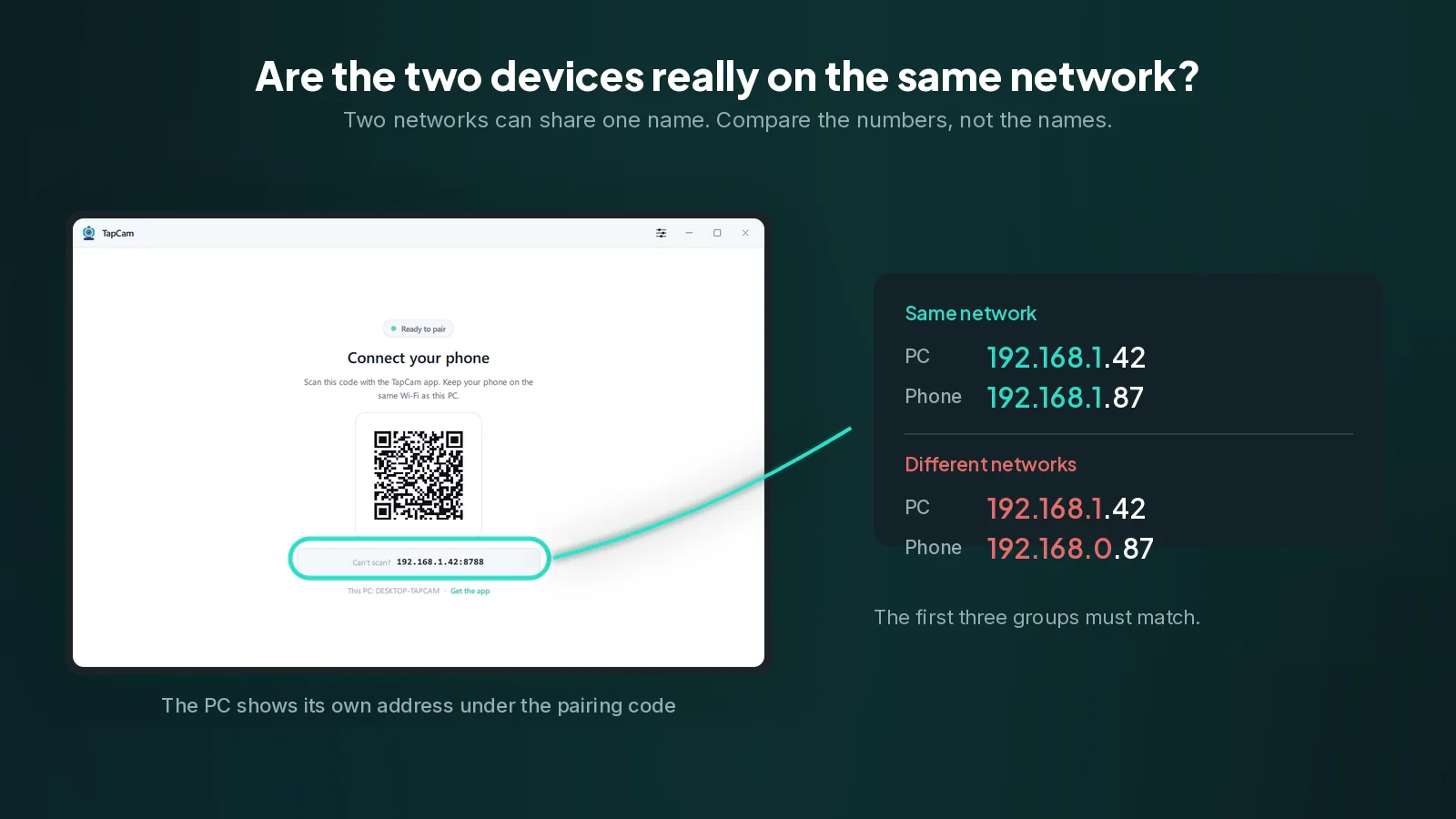
To check properly, compare the numbers rather than the network names. On the PC, look at the IP address your webcam app shows next to its pairing code. On the phone, open the Wi-Fi settings and look at its own IP. The first three groups of digits should match: 192.168.1.x on both, or 192.168.0.x on both. If one says 192.168.1. and the other 192.168.0., they are on different networks and nothing else you try will help until that is fixed.
Did you allow the app through the Windows firewall? The first time the PC half of any such app runs, Windows shows a dialog asking whether to allow it on private or public networks. That dialog is easy to dismiss without reading, and if it was dismissed, Windows silently blocks every incoming connection to the app. The phone then looks for a PC that cannot answer.
To fix it, open Windows Security, then Firewall and network protection, then Allow an app through firewall, find the app, and tick Private. If it is not in the list at all, the simplest fix is to uninstall and reinstall it, then read the prompt this time.
Then, the network being unhelpful on purpose
Some networks block devices from talking to each other. This is a feature, not a fault, and it is invisible until something like this fails.
- Guest Wi-Fi. Nearly every guest network isolates its clients from each other by design. Move the phone to the main network.
- Client isolation, also called AP isolation or client separation, does the same thing on a main network. It is on by default on some routers and in most hotels, cafés and offices. It lives in the router's wireless settings.
- A VPN on either device. A VPN puts one end on a different network than the one it is physically connected to. Turn it off on the phone, on the PC, or on both, and try again.
- Corporate or campus networks usually isolate clients as policy. On these, the cable is not a workaround, it is the answer.
On an iPhone, check the local network permission
iOS asks each app, once, for permission to find and connect to devices on the local network. If that prompt was declined, the app can use the internet but cannot see your PC, and the error it shows will look like a connection failure rather than a permissions problem.
Open Settings, scroll to the app, and turn on Local Network. Then restart the app.
Android has no direct equivalent, but battery optimisation can produce a similar effect over time, which is the next item.
If it connects and then drops
A link that establishes and then dies is a different problem from one that never establishes. Look at these instead.
- Battery optimisation on Android. The system suspends background apps to save power, and a webcam app that gets suspended stops sending. In the phone's battery settings, set the app to Unrestricted or exclude it from optimisation.
- The screen locking. Some phones cut the camera when the screen locks. Keep the app in the foreground, or use its own setting for this if it has one.
- Wi-Fi power saving on the PC. In Device Manager, open the network adapter's properties, and on the Power Management tab, untick the option that lets Windows turn the adapter off to save power.
- A crowded 2.4 GHz band. If both devices support 5 GHz, put them both on it. The 2.4 GHz band is shared with microwaves, older devices and every neighbour within range.
- Distance and walls. Video is a continuous stream, not a web page. A signal that is good enough to load a page can be too unstable to carry video without stuttering.
If the picture works but the camera is missing in Zoom or Teams
This is the other half of the problem, and it is not a network issue at all. If the phone shows a picture in the PC app but your video app does not list the camera, the cause is usually one of these.
The video app was already running when you installed. Zoom, Teams, Meet, Discord and OBS build their camera list once at startup. Close the app completely and reopen it. In Teams and Discord, "close" means quitting from the system tray, not just closing the window.
Another app is already holding the camera. Windows lets one app use a camera at a time. If Zoom is holding it, Teams will not get it. Close the other one first.
A browser has not been given permission. Meet and other browser-based apps ask for camera permission per site. Check the padlock in the address bar and confirm the camera is allowed, then pick the right camera in the site's own settings.
Camera privacy settings in Windows. Open Settings, then Privacy and security, then Camera, and confirm that camera access is on and that desktop apps are allowed to use it.
The virtual camera is not registered. Where the camera list lives in each app is worth checking first. On Windows the camera needs a one-time registration, which installers normally do for you. If a reinstall fixes it, that was the cause.
Why QR pairing avoids most of this
Most apps in this category ask the phone to find the PC by itself, using network discovery. When it works it feels magical. When it does not, you get an empty list and no explanation, which is why so much of the documentation for these apps is about firewalls, guest networks and mDNS.
TapCam shows a QR code containing the PC's address and a token, and the phone scans it. The phone is told exactly where to connect instead of searching, so discovery cannot fail, and the address shown under the code is also what you use to check that both devices are on the same network. It does not repeal the laws of networking: client isolation still blocks traffic, and a firewall still blocks a port. But it removes the largest single cause of failure, and it tells you what to look at when something else is wrong.
If the network is genuinely hostile, TapCam also runs over the USB cable, which is not affected by any of it.
The order to try things in
- Install and open the PC half of the app; no pairing code on the PC means it is not running.
- Check both devices are on the same network, by comparing IP addresses rather than names.
- Allow the app through the Windows firewall.
- Turn off any VPN.
- Move off guest Wi-Fi, and check client isolation on the router.
- On iPhone, grant the local network permission.
- Restart the video app so it rebuilds its camera list.
- If it still fails, use a USB data cable.
That last step is not giving up. On a network you do not control, it is the correct answer.
Frequently asked questions
Why can my phone not find my PC?+
Almost always because they are not on the same network, or because the Windows firewall is blocking the PC app. Compare the IP addresses rather than the network names: the first three groups of digits must match on both devices.
Why does it connect and then drop?+
A link that establishes and then dies is usually battery optimisation suspending the phone app, the screen locking, Wi-Fi power saving on the PC network adapter, or a weak 2.4 GHz signal. Set the phone app to unrestricted battery use and move both devices to 5 GHz.
The picture works but Zoom does not list the camera. Why?+
Because Zoom built its camera list when it started. Close it completely, from the system tray if needed, and reopen it. If it still does not appear, another app may be holding the camera: Windows gives a camera to one application at a time.
What is client isolation?+
A router setting, also called AP isolation, that stops devices on the same Wi-Fi from talking to each other. It is standard on guest networks and common in hotels, cafés and offices. When it is on, no phone-as-webcam app can work over that network, and a USB cable is the answer.
Does a USB cable really avoid all of this?+
Yes, for the network causes, which is most of them. A cable is a direct link with no network in the path, so guest networks, client isolation, VPNs and firewalls stop being relevant. It has to be a data cable, not a charge-only one.